Showing posts with label ESXi. Show all posts

Friday, March 10, 2017

Failed to Deploy OVF package

Failed to deploy package: File ds:///vmfs/volumes/UUID/_deviceImage-0.iso was not found


While working on setup for a Custom version of our Exchange 2013/2016 Ultimate Bootcamp today, I came across a problem which is not new, but was new to me.

A colleague had saved some VMs to OVA format for deployment in a Master vApp.  As I went to deploy them, I received the following error message:


After doing some research, I came across a couple of articles.  Neither gave me what I needed, but through combining bits and experimenting, I found a solution.

PROBLEM: 

   The VMs had ISOs attached to their CD-ROMs when the were exported to OVA format.
   The OVF file inside the OVA package has information about the attached ISO.


SOLUTION:

  1. Uncompressed the OVA file using either TAR on Linux/ESXi or 7-Zip on Windows.
  2. Located the OVF file which contains the configuration of the VM to deploy.


  3. In the VMname.OVF file, I searched for “vmware.cdrom.iso”
  4. I replaced vmware.cdrom.iso with vmware.cdrom.remotepassthrough and saved the file.

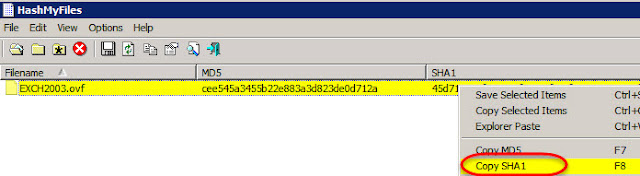
  5. Calculated a new SHA1 hash for the updated VMname.OVF file using HashMyFiles (Download here: http://www.nirsoft.net/utils/hash_my_files.html)

  6. Edited the VMname.mf file and replaced the SHA1 hash for the VMname.ovf with the new one & saved the file.


  7. Deployed a new VM using the OVF file.
  8. Optionally you could repackage the OVF to an OVA using either OVFTool or TAR in a host.
    tar cvf VMname.ova VMname.ovf
    tar uvf VMname.ova *.mf *.vmdk

Another option would be to simply delete the MF file.  vSphere deployment of the OVF then wouldn't do a hash check at all and the install will complete as expected.  Your choice!

Saturday, February 25, 2017

VMware ESXi 6.0 Update 3 Released 2/24/2017!

vSphere 6.0 Update 3 Release Note here...

The major items are the Build number, What's New and Resolved Items.

ESXi 6.0 Update 3 | 24 FEB 2017 | ISO Build 5050593

What's New

  • Updated ESXi Host Client: VMware ESXi 6.0 Update 3 includes an updated version of the ESXi Host Client, version 1.14.0. The updated Host Client includes bug fixes and brings it much closer to the functionality provided by the vSphere Client. If you updated the Host Client through ESXi 6.0 patch releases, then install version 1.14.0 provided with ESXi 6.0 U3. In addition, new versions of the Host Client continue to be released through the VMware Labs Flings website. However, these Fling releases are not officially supported and not recommended for production environments.
  • Support for TLS: Support for TLSv1.0, TLSv1.1 and TLSv1.2 are enabled by default and configurable for ESXi 6.0 Update 3. Learn how to configure TLSv1.0,TLSv1.1 and TLSv1.2 from VMware Knowledge Base article 2148819. For a list of VMware products supported for TLSv1.0 disablement and the use of TLSv1.1/1.2, consult VMware Knowledge Base article 2145796.
  • vSAN Performance: Multiple fixes are introduced in this VMware ESXi 6.0 Update 3 release to optimize I/O path for improved vSAN perfoamance in All Flash and Hybrid configurations:
    • Log management and storage improvements were made that enable more logs to be stored per byte of storage. This should significantly improve performance for write-intensive workloads. Because vSAN is a log based file system, efficient management of log entries is key to preventing unwarranted build up of logs.
    • In addition to increasing the packing density of the log entries, for scenarios involving large file being deleted while data services is turned on, vSAN preemptively de-stages data to the capacity tier which efficiently manages the log growth.
    • The checksum code path is now more efficient. 

Resolved Issues

The resolved issues are grouped as follows.
CIM and API Issues
  • The Mware provider method used to validate user permissions does not work for username and password after you exit lockdown mode
    After the server is removed from lockdown mode, the VMware provider method returns a different value that is not compatible with the value before getting into the lockdown mode. The issue results in the VMware provider method to validate user permissions not to work with the same username and password as it did before the lockdown mode. This issue is resolved in this release.
Miscellaneous Issues
  • Upgrading VMware Tools on multiple VMs might fail
    Attempts to upgrade VMware Tools on multiple VMs simultaneously through Update Manager might fail. Not all VMs complete the upgrade process. This issue is resolved in this release.
  • High read load of VMware Tools ISO images might cause corruption of flash media
    In VDI environment, the high read load of the VMware Tools images can result in corruption of the flash media. This issue is resolved in this release.
    You can copy all the VMware Tools data into its own ramdisk. As a result, the data can be read from the flash media only once per boot. All other reads will go to the ramdisk. vCenter Server Agent (vpxa) accesses this data through the /vmimages directory which has symlinks that point to productLocker.
    To activate this feature, follow the steps:
    1. Use the command to set the advanced ToolsRamdisk option to 1:
    2. esxcli system settings advanced set -o /UserVars/ToolsRamdisk -i 1
    3. Reboot the host.
  • The syslog.log file might get flooded with Unknown error messages
    In ESXi 6.0 update 2, hosts with Dell CIM provider can have their syslog.log file flooded with Unknown error messages if the Dell CIM provider is disabled or in an idle state. Also, when the ESXi 6.0 update 2 host reboots, the syslog.log file might log error messages intermittently with Unknown entries. This issue is resolved in this release.
  • Userworld core dump failure
    A userworld dump might fail when a user process runs out of memory. The error message, Unable to allocate memory, is displayed. This issue is resolved in this release. The fix provides a global memory for heap allocation of userworld core dump, which is used when any process runs out of memory.
  • Attempts to run failover for a VM fail with an error when synchronizing storage
    Attempts to run failover for a VM might fail with an error message similar to the following during the synchonize storage operation:

    An error occurred while communicating with the remote host.

    The following messages are logged in the HBRsrv.log file:

    YYYY-MM-DDT13:48:46.305Z info hbrsrv[nnnnnnnnnnnn] [Originator@6876 sub=Host] Heartbeat handler detected dead connection for host: host-9
    YYYY-MM-DDT13:48:46.305Z warning hbrsrv[nnnnnnnnnnnn] [Originator@6876 sub=PropertyCollector] Got WaitForUpdatesEx exception: Server closed connection after 0 response bytes read; 171:53410'>, >)>


    Also on the ESXi host, the hostd service might stop responding with messages similar to the following:

    YYYY-MM-DDT13:48:38.388Z panic hostd[468C2B70] [Originator@6876 sub=Default]
    -->
    --> Panic: Assert Failed: "progress >= 0 && progress <= 100" @ bora/vim/hostd/vimsvc/HaTaskImpl.cpp:557
    --> Backtrace:
    -->
    This issue is resolved in this release.
  • Log messages persistently reported in the hostd.log file every 90 seconds
    Log messages related to Virtual SAN similar to the following are logged in the hostd.log file every 90 seconds even when the Virtual SAN is not enabled:

    { YYYY-MM-DDT06:50:01.923Z info hostd[nnnnnnnn] [Originator@6876 sub=Hostsvc opID=21fd2fe8] VsanSystemVmkProvider : GetRuntimeInfo: Complete, runtime info: (vim.vsan.host.VsanRuntimeInfo) {
    YYYY-MM-DDT06:51:33.449Z info hostd[nnnnnnnn] [Originator@6876 sub=Hostsvc opID=21fd3009] VsanSystemVmkProvider : GetRuntimeInfo: Complete, runtime info: (vim.vsan.host.VsanRuntimeInfo) {
    YYYY-MM-DDT06:53:04.978Z info hostd[nnnnnnnn] [Originator@6876 sub=Hostsvc opID=21fd3030] VsanSystemVmkProvider : GetRuntimeInfo: Complete, runtime info: (vim.vsan.host.VsanRuntimeInfo) {
    This issue is resolved in this release.
  • Upgrading VMware Tools on multiple VMs might fail
    Attempts to upgrade VMware Tools on multiple VMs simultaneously through Update Manager might fail. If this issue occurs, VMware Tools for some VMs might not be upgraded. This issue is resolved in this release.
Networking Issues
  • ARP request packets might drop
    ARP request packets between two VMs might be dropped if one VM is configured with guest VLAN tagging and the other VM is configured with virtual switch VLAN tagging, and VLAN offload is turned off on the VMs.
  • ESXi firewall configuration might get disabled due to scripted upgrade
    The ESXi firewall configuration might be disabled after scripted upgrade of ESXi 6.0 Update 1 or later using kick start file over NFS or FTP. This issue is resolved in this release.
  • The virtual MAC address of 00:00:00:00:00:00 is used during communication for a newly added physical NIC even after a host reboot
    A newly added physical NIC might not have the entry in the esx.conf file after a host reboot, resulting in a virtual MAC address of 00:00:00:00:00:00 listed for physical NIC during communication. This issue is resolved in this release.
  • Error message displayed during the boot stage
    Under certain conditions while the ESXi installer reads the installation script during the boot stage, an error message similar to the following is displayed:

    VmkNicImpl::DisableInternal:: Deleting vmk0 Management Interface, so setting advlface to NULL This issue is resolved in this release.
  • Physical switch flooded with RARP packets when using Citrix VDI PXE boot
    When you boot a virtual machine for Citrix VDI, the physical switch is flooded with RARP packets (over 1000) which might cause network connections to drop and a momentary outage. This release provides an advanced option /Net/NetSendRARPOnPortEnablement. You need to set the value for /Net/NetSendRARPOnPortEnablement to 0 to resolve this issue.
  • An ESXi host might fail with purple diagnostic screen
    An ESXi host might fail with purple diagnostic screen. This happens when DVFilter_TxCompletionCB() is called to complete a dvfilter share memory packet, it frees the IO complete data stored inside the packet, but sometimes, this data member becomes 0 which causes a NULL pointer exception. An error message similar to the following is displayed:

    YYYY-MM-DDT04:11:05.134Z cpu24:33420)@BlueScreen: #PF Exception 14 in world 33420:vmnic4-pollW IP 0x41800147d76d addr 0x28
    PTEs:0x587e436023;0x587e437023;0x587e438023;0x0;
    YYYY-MM-DDT04:11:05.134Z cpu24:33420)Code start: 0x418000800000 VMK uptime: 23:18:59:55.570
    YYYY-MM-DDT04:11:05.135Z cpu24:33420)0x43915461bdd0:[0x41800147d76d]DVFilterShmPacket_TxCompletionCB@com.vmware.vmkapi#v2_3_0_0+0x3d sta
    YYYY-MM-DDT04:11:05.135Z cpu24:33420)0x43915461be00:[0x41800146eaa2]DVFilterTxCompletionCB@com.vmware.vmkapi#v2_3_0_0+0xbe stack: 0x0
    YYYY-MM-DDT04:11:05.136Z cpu24:33420)0x43915461be70:[0x418000931688]Port_IOCompleteList@vmkernel#nover+0x40 stack: 0x0
    YYYY-MM-DDT04:11:05.136Z cpu24:33420)0x43915461bef0:[0x4180009228ac]PktListIOCompleteInt@vmkernel#nover+0x158 stack: 0x0
    YYYY-MM-DDT04:11:05.136Z cpu24:33420)0x43915461bf60:[0x4180009d9cf5]NetPollWorldCallback@vmkernel#nover+0xbd stack: 0x14
    YYYY-MM-DDT04:11:05.137Z cpu24:33420)0x43915461bfd0:[0x418000a149ee]CpuSched_StartWorld@vmkernel#nover+0xa2 stack: 0x0
    This issue is resolved in this release.
Security Issues
  • Update to the Likewise Kerberos
    The Likewise Kerberos is updated to version 1.14.
  • Update to OpenSSL
    The OpenSSL is updated to version openssl-1.0.2j.
  • Update to PAM
    The PAM is updated to version 1.3.0.
  • Update to the libPNG library
    The libPNG library is updated to libpng-1.6.26.
  • Update to the NTP package
    The ESXi NTP package is updated to version 4.2.8p9.
  • Update to the libcurl library
    The ESXi userworld libcurl library is updated to libcurl- 7.51.0.
Server Configuration Issues

  • Connectivity to ESXi host is lost from vCenter Server when host profile is reapplied to a stateless ESXi host
    When a host profile with vmknic adapters in both vSphere Standard Switch and vSphere Distributed Switch is applied to an ESXi host, it might remove the vmknic adapter vmk0 (management interface) from vSphere Standard Switch which could result in the host being disconnected from vCenter Server. This issue is resolved in this release.
  • The hostd service might fail when taking quiesced snapshot
    The hostd service might fail when performing a quiesced snapshot operation during replication process. An error message similar to the following appears in the hostd.log file: 2016-06-10T22:00:08.582Z [37181B70 info 'Hbrsvc'] ReplicationGroup will retry failed quiesce attempt for VM (vmID=37) 2016-06-10T22:00:08.583Z [37181B70 panic 'Default'] --> -->Panic: Assert Failed: "0" @ bora/vim/hostd/hbrsvc/ReplicationGroup.cpp:2779 This issue is resolved in this release.
  • ESXi 6.0 Update 1 hosts might fail with a purple diagnostic screen when collecting statistics
    ESXi hosts with a large number of physical CPUs might stop responding during statistics collection. This issue occurs when the collection process attempts to access pages that lie beyond the range initially assigned to it. This issue is resolved in this release.
  • ESXi patch update might fail with a warning message if the image profile size is larger than set limit
    An ESXi patch update installation might fail if the size of the target profile file is larger than 239 MB. This might happen when you upgrade the system using ISO causing image profile size larger than 239MB without getting any warning message. This will prevent any additional VIBs from being installed on the system. This issue is resolved in this release.
  • The vmkernel.log file is spammed with multiple USB suspend and resume events
    The vmkernel.log file is spammed with multiple USB resumed and suspended events similar to the following:

    YYYY-MM-DDT
    This issue is resolved in this release.
  • Unable to see the user or group list for assigning permissions in the Permission tab
    Unable to see the users or groups list for assigning permissions in the Permission tab and authentication might fail for the trusted domain's user. The issue occurs when the DNS domain name of a machine is different from the DNS name of the AD domain. This issue is resolved in this release. However, after you upgrade the ESXi host to ESXi 6.0 Update 3, you must remove it from the AD domain and re-add it to the same domain.
  • ESXi host might stop responding and display a purple diagnostic screen
    When the Dump file set is called using the esxcfg-dumppart or other commands multiple times in parallel, an ESXi host might stop responding and display a purple diagnostic screen with entries similar to the following as a result of a race condition while dump block map is freed up:

    @BlueScreen: PANIC bora/vmkernel/main/dlmalloc.c:4907 - Corruption in dlmalloc
    Code start: 0xnnnnnnnnnnnn VMK uptime: 234:01:32:49.087
    0xnnnnnnnnnnnn:[0xnnnnnnnnnnnn]PanicvPanicInt@vmkernel#nover+0x37e stack: 0xnnnnnnnnnnnn
    0xnnnnnnnnnnnn:[0xnnnnnnnnnnnn]Panic_NoSave@vmkernel#nover+0x4d stack: 0xnnnnnnnnnnnn
    0xnnnnnnnnnnnn:[0xnnnnnnnnnnnn]DLM_free@vmkernel#nover+0x6c7 stack: 0x8
    0xnnnnnnnnnnnn:[0xnnnnnnnnnnnn]Heap_Free@vmkernel#nover+0xb9 stack: 0xbad000e
    0xnnnnnnnnnnnn:[0xnnnnnnnnnnnn]Dump_SetFile@vmkernel#nover+0x155 stack: 0xnnnnnnnnnnnn
    0xnnnnnnnnnnnn:[0xnnnnnnnnnnnn]SystemVsi_DumpFileSet@vmkernel#nover+0x4b stack: 0x0
    0xnnnnnnnnnnnn:[0xnnnnnnnnnnnn]VSI_SetInfo@vmkernel#nover+0x41f stack: 0x4fc
    0xnnnnnnnnnnnn:[0xnnnnnnnnnnnn]UWVMKSyscallUnpackVSI_Set@#+0x394 stack: 0x0
    0xnnnnnnnnnnnn:[0xnnnnnnnnnnnn]User_UWVMKSyscallHandler@#+0xb4 stack: 0xffb0b9c8
    0xnnnnnnnnnnnn:[0xnnnnnnnnnnnn]User_UWVMKSyscallHandler@vmkernel#nover+0x1d stack: 0x0
    0xnnnnnnnnnnnn:[0xnnnnnnnnnnnn]gate_entry_@vmkernel#nover+0x0 stack: 0x0

    This issue is resolved in this release.
Storage Issues
  • Unable to remove stale Virtual Volume volumes and VMDK files using esxcli vvol abandonedvvol command
    Attempts use the esxcli storage vvol storagecontainer abandonedvvol command to clean the stale Virtual Volume volume and the VMDK files that remain on the Virtual Volume volume are unsuccessful. This issue is resolved in this release.
  • Snapshot creation task cancellation for Virtual Volumes might result in data loss
    Attempts to cancel snapshot creation for a VM whose VMDKs are on Virtual Volumes datastores might result in virtual disks not getting rolled back properly and consequent data loss. This situation occurs when a VM has multiple VMDKs with the same name and these come from different Virtual Volumes datastores.
    This issue is resolved in this release.
  • VMDK does not roll back properly when snapshot creation fails for Virtual Volumes VMs
    When snapshot creation attempts for a Virtual Volumes VM fail, the VMDK is tied to an incorrect data Virtual Volume. The issue occurs only when the VMDK for the Virtual Volumes VM comes from multiple Virtual Volumes datastores. This issue is resolved in this release.
  • VM I/O operations stall or cancel when the underlying storage erroneously returns a miscompare error during periodic VMFS heartbeating.
    VMFS uses the SCSI compare-and-write command, also called ATS, for periodic heartbeating. Any miscompare error during ATS command execution is treated as a lost heartbeat and the datastore initiates a recovery action. To prevent corruption, all I/O operations on the device are canceled. When the underlying storage erroneously reports miscompare errors during VMFS heartbeating, the datastore initiates an unnecessary recovery action.
    This issue is resolved in this release.
  • ESXi 6.x hosts stop responding after running for 85 days
    When this problem occurs, the /var/log/vmkernel log file displays entries similar to the following:

    YYYY-MM-DDTHH:MM:SS.833Z cpu58:34255)qlnativefc: vmhba2(5:0.0): Recieved a PUREX IOCB woh oo
    YYYY-MM-DDTHH:MM:SS.833Z cpu58:34255)qlnativefc: vmhba2(5:0.0): Recieved the PUREX IOCB.
    YYYY-MM-DDTHH:MM:SS.833Z cpu58:33674)qlnativefc: vmhba2(5:0.0): sizeof(struct rdp_rsp_payload) = 0x88
    YYYY-MM-DDTHH:MM:SS.833Z cpu58:33674qlnativefc: vmhba2(5:0.0): transceiver_codes[0] = 0x3
    YYYY-MM-DDTHH:MM:SS.833Z cpu58:33674)qlnativefc: vmhba2(5:0.0): transceiver_codes[0,1] = 0x3, 0x40
    YYYY-MM-DDTHH:MM:SS.833Z cpu58:33674)qlnativefc: vmhba2(5:0.0): Stats Mailbox successful.
    YYYY-MM-DDTHH:MM:SS.833Z cpu58:33674)qlnativefc: vmhba2(5:0.0): Sending the Response to the RDP packet
    YYYY-MM-DDTHH:MM:SS.833Z cpu58:33674 0 1 2 3 4 5 6 7 8 9 Ah Bh Ch Dh Eh Fh
    YYYY-MM-DDTHH:MM:SS.833Z cpu58:33674)--------------------------------------------------------------
    YYYY-MM-DDTHH:MM:SS.833Z cpu58:33674) 53 01 00 00 00 00 00 00 00 00 04 00 01 00 00 10
    YYYY-MM-DDTHH:MM:SS.833Z cpu58:33674) c0 1d 13 00 00 00 18 00 01 fc ff 00 00 00 00 20
    YYYY-MM-DDTHH:MM:SS.833Z cpu58:33674) 00 00 00 00 88 00 00 00 b0 d6 97 3c 01 00 00 00
    YYYY-MM-DDTHH:MM:SS.833Z cpu58:33674) 0 1 2 3 4 5 6 7 8 9 Ah Bh Ch Dh Eh Fh
    YYYY-MM-DDTHH:MM:SS.833Z cpu58:33674)--------------------------------------------------------------
    YYYY-MM-DDTHH:MM:SS.833Z cpu58:33674) 02 00 00 00 00 00 00 80 00 00 00 01 00 00 00 04
    YYYY-MM-DDTHH:MM:SS.833Z cpu58:33674) 18 00 00 00 00 01 00 00 00 00 00 0c 1e 94 86 08
    YYYY-MM-DDTHH:MM:SS.833Z cpu58:33674) 0e 81 13 ec 0e 81 00 51 00 01 00 01 00 00 00 04
    YYYY-MM-DDTHH:MM:SS.833Z cpu58:33674) 2c 00 04 00 00 01 00 02 00 00 00 1c 00 00 00 01
    YYYY-MM-DDTHH:MM:SS.833Z cpu58:33674) 00 00 00 00 00 00 00 00 00 00 00 00 00 00 00 00
    YYYY-MM-DDTHH:MM:SS.833Z cpu58:33674) 00 00 00 00 40 00 00 00 00 01 00 03 00 00 00 10
    YYYY-MM-DDTHH:MM:SS.833Z cpu58:33674) 50 01 43 80 23 18 a8 89 50 01 43 80 23 18 a8 88
    YYYY-MM-DDTHH:MM:SS.833Z cpu58:33674) 00 01 00 03 00 00 00 10 10 00 50 eb 1a da a1 8f
    This issue is caused by a qlnativefc driver bug sending a Read Diagnostic Parameters (RDP) response to the HBA adapter with an incorrect transfer length. As a result, the HBA adapter firmware does not free the buffer pool space. Once the buffer pool is exhausted, the HBA adapter is not able to further process any requests causing the HBA adapter to become unavailable. By default, the RDP routine is initiated by the FC Switch and occurs once every hour, resulting in the buffer pool being exhausted in approximately 80 to 85 days under normal circumstances.
    This issue is resolved in this release.
  • In vSphere 6.0, the HostMultipathStateInfoPath object of the Storage Policy API provides path value as Run Time Name vmhbaX:CX:TX:LX
    In ESXi 5.5, HostMultipathStateInfoPath provided path information in this format: HostWWN-ArrayWWN-LUN_ID, For example, sas.500605b0072b6550-sas.500c0ff1b10ea000-naa.600c0ff0001a20bd1887345701000000. However, in ESXi 6.0, the path value appears as vmhbaX:CX:TX:LX, which might impact users who rely on the HostMultipathStateInfoPath object to retrieve information such as HostWWN and ArrayWWN. This issue is resolved in this release. The HostMultipathStateInfoPath object now displays the path information as Run Time Name and HostWWN-ArrayWWN-LUN_ID.
    You can also use the esxcli storage core path list command to retrieve the path related information. This command provides the HostWWN and ArrayWWN details. For more information, see the Knowledge Base article 1003973.
  • An ESXi host might fail with a purple diagnostic screen
    An ESXi host with vFlash configured might fail with a purple diagnostic screen and an error message similar to PSOD: @BlueScreen: #PF Exception 14 in world 500252:vmx-vcpu-0:V. This issue is resolved in this release.
  • ESXi host fails with a purple diagnostic screen due to path claiming conflicts
    An ESXi host displays a purple diagnostic screen when it encounters a device that is registered, but whose paths are claimed by a two multipath plugins, for example EMC PowerPath and the Native Multipathing Plugin (NMP). This type of conflict occurs when a plugin claim rule fails to claim the path and NMP claims the path by default. NMP tries to register the device but because the device is already registered by the other plugin, a race condition occurs and triggers an ESXi host failure. This issue is resolved in this release.
  • File operations on large files fails as the host runs out of memory
    When you perform file operations such as mounting large files present on a datastore, these operations might fail on an ESXi host. This situation can occur when a memory leak in the buffer cache causes the ESXi host to run out of a memory, for example, when a non-zero copy of data results in buffers not getting freed. An error message similar to the following is displayed on the virtual machine.

    The operation on file /vmfs/volumes/5f64675f-169dc0cb/CloudSetup_20160608.iso failed. If the file resides on a remote file system, make sure that the network connection and the server where this disk resides are functioning properly. If the file resides on removable media, reattach the media. Select Retry to attempt the operation again. Select Cancel to end this session. Select Continue to forward the error to the guest operating system. This issue is resolved in this release.
  • Horizon View recompose operation might fail for desktop VMs residing in NFS datastore
    Horizon View recompose operation might fail for a few desktop VMs residing in NFS datastore with Stale NFS file handle error. This issue is resolved in this release.
Upgrade and Installation Issues
  • Upgrading ESXi with vSphere Update Manager fails if ESXi was deployed using dd image on USB and /altbootbank contains BOOT.CFG in upper case
    An ESXi dd image generated on certain versions of RHEL by using the esxiso2dd utility can contain BOOT.CFG in upper case in /altbootbank. If BOOT.CFG is in upper case, vSphere Update Manager fails to upgrade the host because the upgrade pre-checker accepts boot.cfg in lowercase only. This issue is resolved in this release.
  • Hostd fails when you upgrade ESXi 5.5.x hosts to ESXi 6.0.x with the ESXi 6.0 patch ESXi600-201611011 or higher
    You can observe this issue when you have installed an asynchronous HPSA driver that supports HBA mode. Although ESXi supports getting HPSA disk location information in HBA mode, problems might occur when one of the following conditions is met:

    • You installed an old hpssacli utility, version 2.10.14.0 or older.
    • You used an external array to connect the HPSA controller.
    These problems lead to hostd failures and the host becoming unreachable by vSphere Client and vCenter Server.
    This issue is resolved in this release. When you now use the esxcli command to get the disk location information, hostd does not fail. The esxcli command returns an error message similar to the following:
    # esxcli storage core device physical get -d naa.500003963c888808 Plugin lsu-hpsa-plugin cannot get information for device with name naa.500003963c888808. Error was: Invalid output for physicaldrive.
  • vSphere Update Manager upgrade of ESXi booted with dd image on USB might fail when /altbootbank contains BOOT.CFG (uppercase) instead of boot.cfg (lowercase)
    ESXi dd image generated on certain versions of RHEL using esxiso2dd utility contains BOOT.CFG (in uppercase) in /altbootbank, presence of BOOT.CFG causes vSPhere Update Manager upgrade of ESXi to fail because the upgrade pre-check looks for boot.cfg in lowercase only.
  • This issue is resolved in this release.
  • After upgrade to 6.0, the Image Profile name in the summary tab of the host is not updated properly
    When you use the esxcli software profile update command to apply a new Image Profile, the image profile name does not change to the new image profile name. Also when you use the ISO to perform the upgrade, the new image profile name is not marked as Updated. This issue is resolved in this release.
Virtual Machine Management Issues
  • vSphere Update Manager sends reboot reminders for VMware Tools when reboot already occurred after installation
    The VMware Tools installation error code displays that a reboot is required even after the reboot occurred after VMware Tools was installed. The guestInfo.toolsInstallErrCode variable on the virtual machine executable (VMX) side is not cleared when VMware Tools is successfully installed and reboot occurs. This causes vSphere Update Manager to send incorrect reminders to reboot VMware Tools. This issue is resolved in this release.
  • Hostd fails when ListProcesses run on guest operating system
    When a large number of processes are present in a guest operating system, the ListProcesses process is invoked more than once and the data from VMware Tools arrives in multiple chunks. When multiple ListProcesses calls to the guest OS (one for every chunk) are assembled together, the implementation creates a conflict. Multiple ListProcesses identify when all the data arrived and calls an internal callback handler. Calling the handler twice results in the failure of hostd. This issue is resolved in this release.
  • Possible data corruption or loss when a guest OS issues SCSI unmap commands and an IO filter prevents the unmap operation
    When a VM virtual disk is configured with IO filters and the guest OS issues SCSI unmap commands, the SCSI unmap commands might succeed even when one of the configured IO filters failed the operation. As a result, the state reflected in the VMDK diverges from that of the IO filter and data corruption or loss might be visible to the guest OS. This issue is resolved in this release.
  • An ESXi host might fail with purple diagnostic screen
    When a DVFilter_TxCompletionCB() operation attempts to complete a dvfilter share memory packet, it frees the IO complete data member stored inside the packet. In some cases, this data member becomes 0, causing a NULL pointer exception. An error message similar to the following is displayed:

    YYYY-MM-DDT04:11:05.134Z cpu24:33420)@BlueScreen: #PF Exception 14 in world 33420:vmnic4-pollW IP 0x41800147d76d addr 0x28 PTEs:0x587e436023;0x587e437023;0x587e438023;0x0; YYYY-MM-DDT04:11:05.134Z cpu24:33420)Code start: 0x418000800000 VMK uptime: 23:18:59:55.570 YYYY-MM-DDT04:11:05.135Z cpu24:33420)0x43915461bdd0:[0x41800147d76d]DVFilterShmPacket_TxCompletionCB@com.vmware.vmkapi#v2_3_0_0+0x3d sta YYYY-MM-DDT04:11:05.135Z cpu24:33420)0x43915461be00:[0x41800146eaa2]DVFilterTxCompletionCB@com.vmware.vmkapi#v2_3_0_0+0xbe stack: 0x0 YYYY-MM-DDT04:11:05.136Z cpu24:33420)0x43915461be70:[0x418000931688]Port_IOCompleteList@vmkernel#nover+0x40 stack: 0x0 YYYY-MM-DDT04:11:05.136Z cpu24:33420)0x43915461bef0:[0x4180009228ac]PktListIOCompleteInt@vmkernel#nover+0x158 stack: 0x0 YYYY-MM-DDT04:11:05.136Z cpu24:33420)0x43915461bf60:[0x4180009d9cf5]NetPollWorldCallback@vmkernel#nover+0xbd stack: 0x14 YYYY-MM-DDT04:11:05.137Z cpu24:33420)0x43915461bfd0:[0x418000a149ee]CpuSched_StartWorld@vmkernel#nover+0xa2 stack: 0x0 This issue is resolved in this release.
  • ESXi host with PCI passthru might stop responding and display a purple diagnostic screen
    When you reboot a VM with PCI Passthru multiple times, the ESXi host might stop responding and display a purple diagnostic screen with messages similar to the following in the vmware.log file:

    XXXXXXXXXXXXXXX| vcpu-0| W110: A core file is available in "/vmx-debug-zdump.000"
    XXXXXXXXXXXXXXX| vcpu-0| I120: Msg_Post: Error
    XXXXXXXXXXXXXXX| vcpu-0| I120: [msg.log.error.unrecoverable] VMware ESX
    XXXXXXXXXXXXXXX| vcpu-0| unrecoverable error: (vcpu-0)
    XXXXXXXXXXXXXXX| vcpu-0| I120+ vcpu-7:ASSERT vmcore/vmm/intr/intr.c:459
    This issue is resolved in this release.
  • The hostd service might fail during replication process
    The hostd service might fail when a quiesced snapshot operation fails during replication process. An error message similar to the following might be written to the hostd.log file:

    YYYY-MM-DDT22:00:08.582Z [37181B70 info 'Hbrsvc'] ReplicationGroup will retry failed quiesce attempt for VM (vmID=37)
    YYYY-MM-DDT22:00:08.583Z [37181B70 panic 'Default']
    -->
    --> Panic: Assert Failed: "0" @ bora/vim/hostd/hbrsvc/ReplicationGroup.cpp:2779
    This issue is resolved in this release.
  • The hostd service might stop responding if it encounters I/O failures for a VM provisioned with an LSI virtual SCSI controller
    An ESXi host might stop responding if it encounters storage I/O failures for a VM provisioned with an LSI virtual controller and memory is overcommitted on the ESXi host. This issue is resolved in this release.
Virtual SAN Issues
  • Intermittent failures in Virtual SAN cluster operations related to provisioning or resulting in new object creation
    A memory leak in the Cluster Level Object Manager Daemon (CLOMD) results in memory exhaustion over a long runtime causing the daemon to become temporarily unavailable. This issue is resolved in this release.
  • DOM module fails to initialize
    Description: The Cluster Level Object Manager Daemon (CLOMD) might not use Virtual SAN on an ESXi host with large number of physical CPUs. This issue can occur if the Virtual SAN DOM module fails to initialize when joining a cluster. An error message similar to the following is displayed in the clomd.log file:
    2016-12-01T22:34:49.446Z 2567759 Failed to run VSI SigCheck: Failure 2016-12-01T22:34:49.446Z 2567759 main: Clomd is starting 2016-12-01T22:34:49.446Z 2567759 main: Is in stretched cluster mode? No 2016-12-01T22:34:49.446Z 2567759 CLOMSetOptions: Setting forground to TRUE 2016-12-01T22:34:49.446Z 2567759 CLOMSetOptions: No default configuration specified. 2016-12-01T22:34:49.447Z 2567759 main: Starting CLOM trace 2016-12-01T22:34:49.475Z 2567759 Cannot open DOM device /dev/dom: No such file or directory 2016-12-01T22:34:49.475Z 2567759 Cannot connect to DOM: Failure 2016-12-01T22:34:49.475Z 2567759 CLOM_CleanupRebalanceContext: Cleaning up rebalancing state 2016-12-01T22:34:49.481Z 2567759 Failed to dump data 2016-12-01T22:34:49.481Z 2567759 2016-12-01T22:34:49.481Z 2567759 main: clomd exit
    This issue is resolved in this release.
  • ESXi host fails to rejoin VMware Virtual SAN cluster after a reboot
    Attempts to rejoin the VMware Virtual SAN cluster manually after a reboot might fail with the following error:

    Failed to join the host in VSAN cluster (Failed to start vsantraced (return code 2) This issue is resolved in this release.
  • Constant calling of VSAN API might result in display of a misleading task message
    In an environment with vCenter Server 6.0 Update 2 and Virtual SAN 6.2, calling the VSAN API constantly results in creation of tasks for registering a ticket to Virtual SAN VASA provider and a message similar to the following is displayed:

    Retrieve a ticket to register the Virtual SAN VASA Provider This issue is resolved in this release.
  • Virtual SAN Disk Rebalance task halts at 5% for more than 24 hours
    The Virtual SAN Health Service reports Virtual SAN Disk Balance warnings in the vSphere Web Client. When you click Rebalance disks, the task appears to halt at 5% for more than 24 hours. This issue is resolved in this release and the Rebalance disks task is shown as completed after 24 hours.
  • ESXi host might stop responding and display a purple diagnostic screen
    An ESXi host might stop responding and display a purple diagnostic screen with messages similar to the following:

    YYYY-MM-DDT22:59:29.686Z cpu40:84493)@BlueScreen: #PF Exception 14 in world 84493:python IP 0xnnnnnnnnnnnn addr 0xfffffffffffffff0 PTEs:0x0;
    YYYY-MM-DDT22:59:29.686Z cpu40:84493)Code start: 0xnnnnnnnnnnnn VMK uptime: 7:15:08:48.373
    YYYY-MM-DDT22:59:29.686Z cpu40:84493)0xnnnnnnnnnnnn:[0xnnnnnnnnnnnn]DOMClient_IsTopObject@com.vmware.vsan#0.0.0.1+0x18 stack: 0xnnnnnnnn
    YYYY-MM-DDT22:59:29.687Z cpu40:84493)0xnnnnnnnnnnnn:[0xnnnnnnnnnnnn]DOMListUuidTopHierarchyCbk@com.vmware.vsan#0.0.0.1+0x69 stack: 0x900
    YYYY-MM-DDT22:59:29.687Z cpu40:84493)0xnnnnnnnnnnnn:[0xnnnnnnnnnnnn]VSANUUIDTable_Iterate@com.vmware.vsanutil#0.0.0.1+0x4b stack: 0x139d
    YYYY-MM-DDT22:59:29.687Z cpu40:84493)0xnnnnnnnnnnnn:[0xnnnnnnnnnnnn]DOMVsi_ListTopClients@com.vmware.vsan#0.0.0.1+0x5a stack: 0x66
    YYYY-MM-DDT22:59:29.688Z cpu40:84493)0xnnnnnnnnnnnn:[0xnnnnnnnnnnnn]VSI_GetListInfo@vmkernel#nover+0x354 stack: 0xnnnnnnnnnnnn
    YYYY-MM-DDT22:59:29.688Z cpu40:84493)0xnnnnnnnnnnnn:[0xnnnnnnnnnnnn]UWVMKSyscallUnpackVSI_GetList@#+0x216 stack: 0xnnnnnnnnn
    YYYY-MM-DDT22:59:29.688Z cpu40:84493)0xnnnnnnnnnnnn:[0xnnnnnnnnnnnn]User_UWVMKSyscallHandler@#+0xb4 stack: 0xnnnnnnn
    YYYY-MM-DDT22:59:29.689Z cpu40:84493)0xnnnnnnnnnnnn:[0xnnnnnnnnnnnn]User_UWVMKSyscallHandler@vmkernel#nover+0x1d stack: 0x0
    YYYY-MM-DDT22:59:29.689Z cpu40:84493)0xnnnnnnnnnnnn:[0xnnnnnnnnnnnn]gate_entry_@vmkernel#nover+0x0 stack: 0x0
    This issue is resolved in this release.
  • ESXi hosts might fail with a purple diagnostic screen
    ESXi hosts in a Virtual SAN Cluster might fail with a purple diagnostic screen when a Virtual SAN resync operation is paused. This issue is resolved in this release.
VMware HA and Fault Tolerance Configuration Issues
  • ESXi host might fail when enabling fault tolerance on a VM
    An ESXi host might fail with a purple diagnostic screen when a Fault Tolerance Secondary VM fails to power on. This issue is resolved in this release.
  • vSphere Guest Application Monitoring SDK fails for VMs with vSphere Fault Tolerance enabled
    When vSphere FT is enabled on an vSphere HA-protected VM where the vSphere Guest Application Monitor is installed, the vSphere Guest Application Monitoring SDK might fail. This release significantly reduces the increase in the VM network latency when Fault Tolerance is enabled.
  • Increased latency when SMP Fault Tolerance is enabled on a VM
    When symmetric multiprocessor (SMP) Fault Tolerance is enabled on a VM, the VM network latency might go up significantly in both average and variations. The increased latency might result in significant performance degradation or instability for VM workloads that are sensitive to such latency increases. This release significantly reduces the increase in the VM network latency when Fault Tolerance is enabled.

Friday, February 3, 2017

VMware VCSA 6.5 Backup and Restore How-to

VMware VCSA 6.5 Backup and Restore How-to.

Note that it is an “out-of-the-box” feature which does a file level backup. It’s “built-in” within the appliance itself, and it allows users to backup not only the vCenter Server but also Platform Services Controller (PSC) appliances directly. VCSA with embedded or external Platform Services Controller (PSC) is supported.

As you might imagine, the restore has to be launched from somewhere. When you’re in a situation when your VCSA is broken, you’ll have to first deploy clean VCSA via the Installation/deployment ISO, but you do that within the restore operation.


What is backed up?

The minimum set of data needed is backed up by default. Those are for example the OS, vCenter services and Inventory. You can additionally backup also Inventory, configuration, and historical data (Statistics, events, and tasks) in vCenter server database

So during the restore operation, you deploy a clean VCSA (phase 1) and you restore from backup (phase 2).  The vCenter Server UUID and all configuration settings are restored. The backup file is stored elsewhere, not on the VCSA itself. VCSA backup can be backed and sent up to different location via different protocols:
  • FTP
  • FTPS
  • HTTP
  • HTTPS
  • SCP

VMware VCSA 6.5 Backup and Restore How-To

Browse to https://VCSA:5480 >


Log in with the password you entered when you have deployed the solution. You’ll see this nice new UI….


After you log in, then you can hit the big Backup button. A wizard will start….


There you’ll be presented with a nice wizard which will allow you to specify where you want to send this backup. The location must be an empty folder. Note the option to encrypt your backup data, a simple check box.

Note the option to encrypt your backup data, a simple check box……


NOTE:  If you use HTTP or HTTPS, you must enable WebDAV on the backup Web server.

The Encrypt Backup Data checkbox, when checked, a new section appears inviting you to put login/password combination. The password form is intelligently checking if you enter twice the same password. If not, you have a small notification telling you that your passwords do not match.
And then I entered the backup setting, such as protocol, login/password combination (make sure to give read/write rights on the folder where you’re backing up) > and finish the wizard.


Note: To check which services are not running you go SSH to the VCSA 6.5 appliance and run

    service-control — status

which gives you services which run on one line, and also services which are not running. The “vmware-stsd” service should be normally running.

To start the service:

    service-control  — start vmware-stsd

Restore operation

Well, from then it is very straightforward. Just quickly…

Launch the setup application of the VCSA 6.5 (from the ISO)
  1. Click the Restore button
  2. Deploy a new appliance using the wizard.
  3. Accept EULA
  4. Enter Backup details
  5. Review backup information
  6. Enter appliance deployment target (ESXi host) ….. from them it is pretty similar to a clean deployment…

Saturday, June 27, 2015

ESXi 6.0 false positive warning: Deprecated VMFS volume(s)

I found and interesting problem on my newly upgraded host today.  I received the warning:

Deprecated VMFS volume(s) found on the host. Please consider upgrading volume(s) to the latest version

Which looks like this:


Turns out simply restarting the management agents on the host will solve this issue. For more information, see Restarting the Management agents on an ESXi or ESX host (1003490).

This infomration comes from VMware KB Article 2109735.
Click here to access it:  http://kb.vmware.com/kb/2109735

Friday, May 29, 2015

Free alternative for backing up VM's for ESXi

William Lam of VirtuallyGhetto.com long ago created a free alternative backup solution for ESXi.  It is distributed as a simple script.  It was developed over 8 years ago for ESX 3.x and continues to be added to and modified today.

Just yesterday William added a post on his site that it is now available in a self installable VIB format.  One of the great things about the VIB is that the program persists now through reboots of ESXi.

The original page for the script GhettoVCB is here: https://communities.vmware.com/docs/DOC-8760

To read more about the latest updates from William and to get to his links for downloading the VIB & offline bundle, click here: http://www.virtuallyghetto.com/2015/05/ghettovcb-vib-offline-bundle-for-esxi.html

Thursday, April 11, 2013

Analyzing Virtualization CPU Performance


There are always many questions around CPU performance. Most individuals I speak with are providing 2 or more vCPUs to the VMs mainly because they feel more is better. Having an extra vCPU cannot hurt performance, right? Well that is not always the case, but lets not limit our discussion to this one topic. What can affect CPU performance? There are primarily 4 of areas of concern:
  1. Idle VMs – Due to timer interrupts on idle VMs it can cause more overhead than when the VM is in use.
  2. CPU Affinity – You may receive a positive impact on performance for the virtual CPU that is pinned to a physical CPU using affinity, however this can cause a performance issue on the rest of the system as the scheduler must try to work around the affinity in order to balance the load. It is strongly advised to not use CPU affinity.
  3. SMP VMs – When using multiple processors there is a co-scheduling overhead
  4. Low CPU resources – When there is contention the CPU scheduler will force vCPUs of lower priority to queue their requests, now all VMs are operating slower

Now that you know the 4 items that can affect performance we need to understand the Key Metrics to monitor, they are:
  1. Host CPU used – the amount of time that the hosts physical CPU was used erring that sampling period. 
  2. irtual machine CPU used – the amount of time that the virtual CPU was actively using the physical CPU during that sampling period. Virtual machines that are utilizing virtual SMP can have their information displayed as an aggregate of all virtual CPUs within the virtual machine or per virtual CPU.
  3. Virtual machine CPU ready time – the amount of time the virtual CPU was ready but could not get scheduled to run on the physical CPU. Virtual machines that are utilizing virtual SMP can have their information displayed as an aggregate of all virtual CPUs within the virtual machine or per virtual CPU. 

We can monitor this with many tools both free and not so free tools, the free tools provided by VMware are the vSphere Client and esxtop/resxtop. Here are a couple of screen shots:

vSphere Client Chart Legend - CPU Ready Time in Milliseconds

resxtop Output - CPU Usage per VM

It is important to understand the differences between the information gathered through the vSphere client and esxtop. The vSphere client information is gathered utilizing 20 second intervals where esxtop information is gathered using 5 second intervals. It is always important to normalize the values for comparing the output from these two monitoring tools.

You can use the vSphere client to monitor CPU performance for the hosts, clusters, resource pools, virtual machines and vApps. There are two important items to take notes regarding use of the vSphere client performance charts:
  1. Only two counters at a time can be displayed in the chart.
  2. The virtual machine object shows aggregate data for all the CPUs within the virtual SMP virtual machine. The numbered objects tracked the performance of the individual virtual CPUs.

If you see a short spike in the CPU used or CPU ready that will normally indicate you are making good use of your host resources. If both values are constantly high the host is probably overcommitted. The values to watch for negative performance would be above a 90% for the CPU used to value and a CPU ready value that is above 20%. 

Do not forget that the time values are different between the different tools used to monitor the CPU values. If you are monitoring a physical number you will need to know the sampling time in order to figure out the percentages involved.

The #1 Warning sign is Ready Time and as expected this latency can affect the performance of the guest operating system. 2000ms or higher indicates contention issue. The below picture shows an example of a VM with inverted usage compared to Ready Time. 

Ready Time and Usage on a single VM
The #2 warning sign is a high used value which can be determined by host CPU used or VM CPU used. This is not always an indication of poor CPU performance. You may wonder why! Keep in mind this is not a physical CPU meaning that what the VM is using does not always indicate that the host is maxed out nor does it always indicate you need more vCPUs. It may just be telling you there is high utilization which is a good thing!

My personal favorite tool for analyzing performance is esxtop/resxtop. You can run esxtop directly on the host and resxtop on the vSphere Management Assistant Appliance. Below are the definitions you need to know in order to analyze what is happening:
  • PCPU USED(%) – CPU utilization per physical CPU
  • Pre-group statistics
    • %USED – Utilization (includes %SYS)
    • %SYS – VMkernel system activity
    • %RDY – Ready time
    • %WAIT – Wait and idling time
    • %CSTP – Pending co-schedule
    • %MLMTD – Time not running because of a CPU limit
    • NWLD – number of worlds associated with a given group

The following commands are the most common when monitoring CPU performance:
  • Press spacebar – immediately updates the current screen
  • Press s – prompts you for the delay between updates, in seconds. The default value is 5 seconds and the minimum value is 2 seconds.
  • Press V – that is a capital “V”. Displays virtual machine instances only. Do not confuse with the lowercase “v”, which is to view the storage virtual machine resource utilization. If you need to switch back to CPU utilization then type the c.
  • Press e – toggles whether CPU statistics are displayed expanded or unexpanded. The expanded display includes CPU resource utilization statistics broken down by individual worlds belonging to a virtual machine. All percentages of the individual worlds are percentage of a single physical CPU.

It is important to know what to look for and what tools can help you get that information, we will take a look at more CPU issues in later blog posts. Be sure to post any questions on http://www.vmtraining.net/forum/


Tuesday, March 26, 2013

VMTraining exceeds student expectations again!


VMTraining has again exceeded the limits of any normal training company! We have upgraded our datacenter to give students an even better experience than they are already used to. This upgrade was primarily focused on storage. We have setup every student server with 10GigE to the storage device! Did you hear that, 10GigE! You will not likely find another vendor in the market that is providing this level of hardware for a quality student experience. We have also added a state of the art Nimble SAN to keep up with our ever growing demand for real world, quality training. This SAN is one of the best in the market place today. 

Wednesday, March 20, 2013

3rd Party Tool Update: RVTools


RVTools is one of the best free tools on the market for finding and viewing information regarding your vSphere infrastructure and Rob de Veij has continued to improve upon this already useful tool. Rob recently released version 3.5, below is a short list of the changes. If you are not familiar with this tool you should check it out, it is very useful. There are many things I like to view with RVTools including the vHealth tab which can warn you of full hard drives or even zombie vmdk’s. Enjoy, send a thanks to Rob for his continued great work! You can download RVTools here: http://www.robware.net/

The recent updates include:

  • On vInfo tabpage new field: Resource pool
  • On vInfo tabpage new field: Consolidation needed.
  • On vCPU tabpage new field: Number of cores per socket
  • New tabpage with resource pool information
  • On vNetwork tabpage new column: Switch name
  • On vNetwork tabpage new column: Starts Connected
  • On vTools tabpage new column: required version
  • On vHost tabpage new columns: custom fields
  • On vDisk tabpage new columns: raw disk information
  • Improved error handling for SSO login problems
  •  Bug fix: Invalid snapshot size fixed
  •  Bug fix: All datetime fields now use the local time zone
  •  Bug fix: data not refreshed after changing filter 

Wednesday, March 6, 2013

Webinar Announcement – Is vSphere® the Best Hypervisor out there?


Who will have bragging rights? vSphere® or Hyper-V?
VMTraining is launching a new webinar series sure to get some input from the many experts across the industry. Register today for the first of a series of three webinars pitting vSphere® and Hyper-V head to head! Who will come out on top?


In the ever expanding world of virtualization many companies claim the top spot! How can we be sure we are making a good business decision in the virtualization choice we are making? Some say Hyper-V some say Red Hat but we are saying vSphere®! Actually this month we will argue the point for vSphere® and in our next webinar we will attempt to prove that Hyper-V owns that top spot. This series will be fun and provide some great technical components that will help you understand the real difference between vSphere® and Hyper-V. We will also have a 3rd webinar in the series that will pit the presenters head to head on a no holds barred discussion of vSphere® vs. Hyper-V. Join in the excitement as we tackle this controversial issue.

Tuesday, March 5, 2013

vSphere® 5.1 UltimateBootcamp

vSphere® 5.1 UltimateBootcamp 
Prior to the release of vSphere® 5.1 the VMTraining team began work to update the course to include all the latest technologies that were released in August by VMware™. Even though these updates were considered minor the changes to what we as administrators have seen may be considered major! There are new additions that cannot be performed through the standard vSphere® Client! That was a sad day for me, now I am forced to use the vSphere® client and the new web client. Regardless our dedicated team has put together some great content and labs in the newly updated vSphere® 5.1 Ultimate Bootcamp. They have included the Single Sign-On Service and Inventory service we all need to deal with during an install. These components have both pros and cons, which have been addressed by our technical team! They have also added the improvements made to the storage interaction. And of course they have added labs using the vSphere® Web Client! Check out the new outline and feel free to ask our experts questions on the VMTraining Forum!

Wednesday, October 3, 2012

VMware vSphere Security and Metasploit Exploitation Framework

The following article was written by Duane Anderson (danderson@vmtraining.net). He is a consultant, trainer and courseware developer for VMTraining, specializing in cloud and virtualization technologies.

This article can also be found in PenTest Magazine's October 2012 issue.

VMware vSphere is another layer in your overall environment to attack, in this article you will learn some of the threats, how to mitigate them and how to attack that virtual layer.

Tuesday, July 31, 2012

HA Works the Way it Should and All VMs Die

I was working at a customer site doing some VMware and Microsoft work. I came in around 1pm and couldn’t get to anything. We couldn’t ping any VM’s. I could however ping the ESXi hosts. I used the vSphere client to connect to each host individually and saw that all VMs were turned off. At the time I had no clue why they were off. The only thing I saw on one of the hosts was that we had lost network redundancy on one of the hosts.

I asked one of the guys if they did anything on the hosts and they said no. I talked to another guy and he had someone else reboot the switch. A little background, all of the ESXi hosts are connected to the same switch (bad) and didn’t separate NICs. When the switch was unplugged all of the hosts determined that they were in Host isolation mode and the way HA was set up was that they were supposed to shut down the VMs.

The purpose of this is so that if one host does get isolated then the VMs will shut down and get restarted on a different host. However since all hosts believed they were isolated they all shut down their respective VMs and sat there doing nothing with all VMs shut off. What would have prevented this would have been to have 2 switches and one NIC connected to each switch. I didn’t design this network, and know it is not best practice to do this, but it was interesting to see this happen. We were doing maintenance on the weekend, so it was no big deal, but imagine the repurcussions is you only have one switch and it fails during the day and all VMs go down. Not good.